Chapter 9 : Agents & Dashboard
Agents & Dashboard
EasyManage helps you build and test AI Agents with No-Code.
AI Agents | Use EasyManage Builder Studio to design AI Agent Workflows as Agent Projects. Test and deploy them with companion Agent Server.
App Dashboard | Make available Apps containing AI Agents to your users. They can Run Agents, share insights and reports.
Using Agents & Dashboard
- View Sample Screens below to help you on using Agents.
- Perform Agent Server Setup before Running Agents.
Agent Chat
- AI Agent Chat
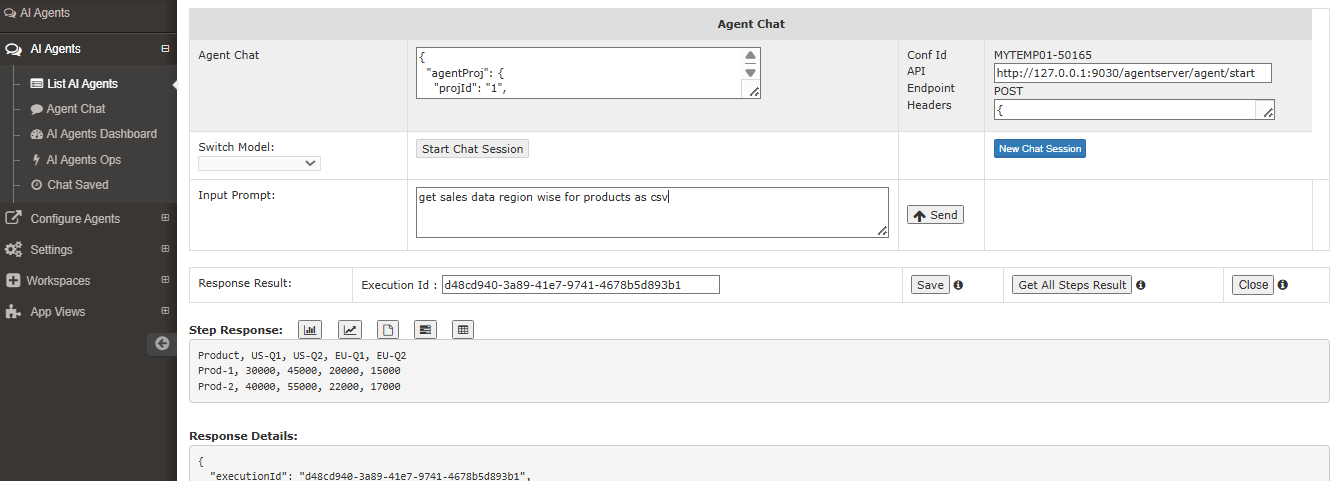
- Chat Response View Charts
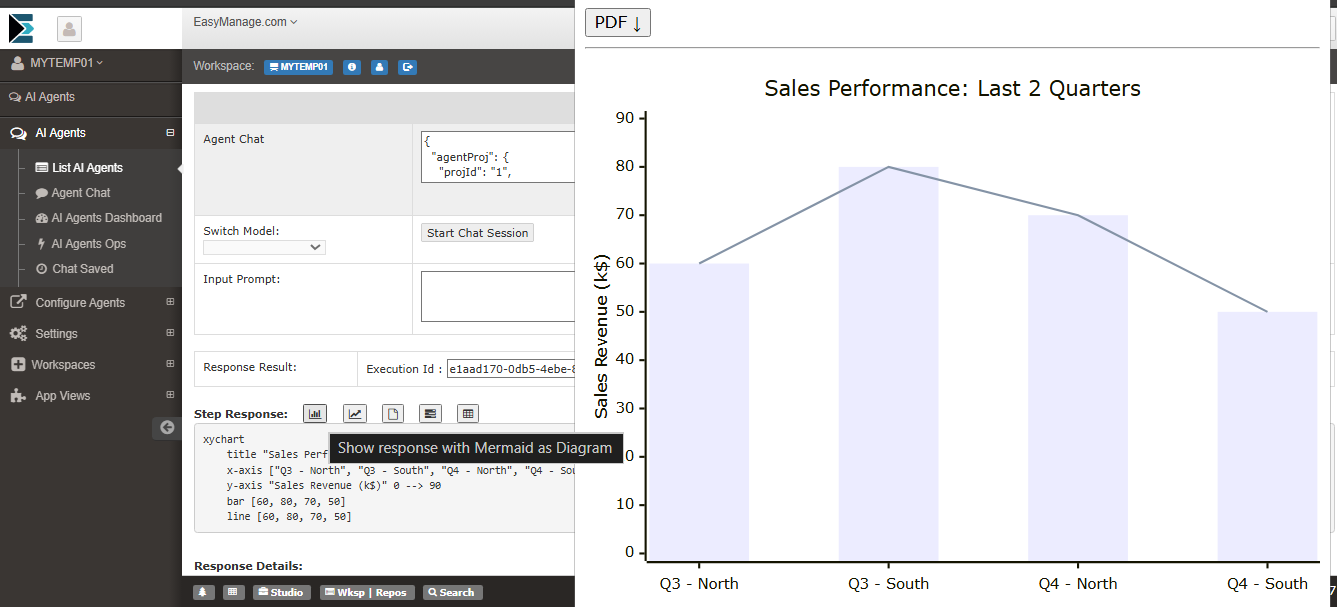
- View As Mermaid Diagram, With Option: Download As PDF
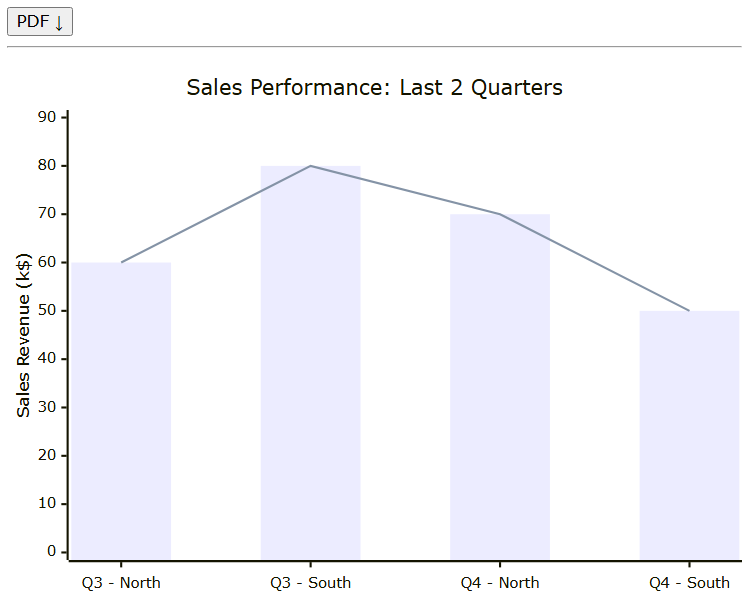
- Chat Response Charts, Markdown Options
- View As Mermaid Diagram, chart.js chart, Markdown formatted
- With Button: Download As PDF

- Chat Response CSV Download Excel
- View As Html table, Download Excel

Agent Project
- AI Agent Workflows as Agent Projects
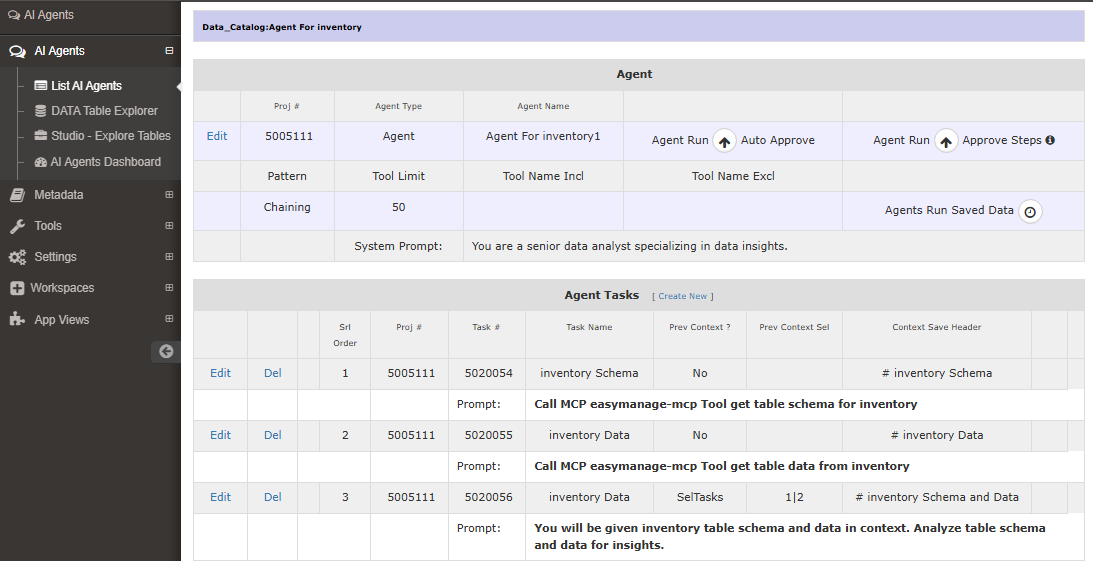
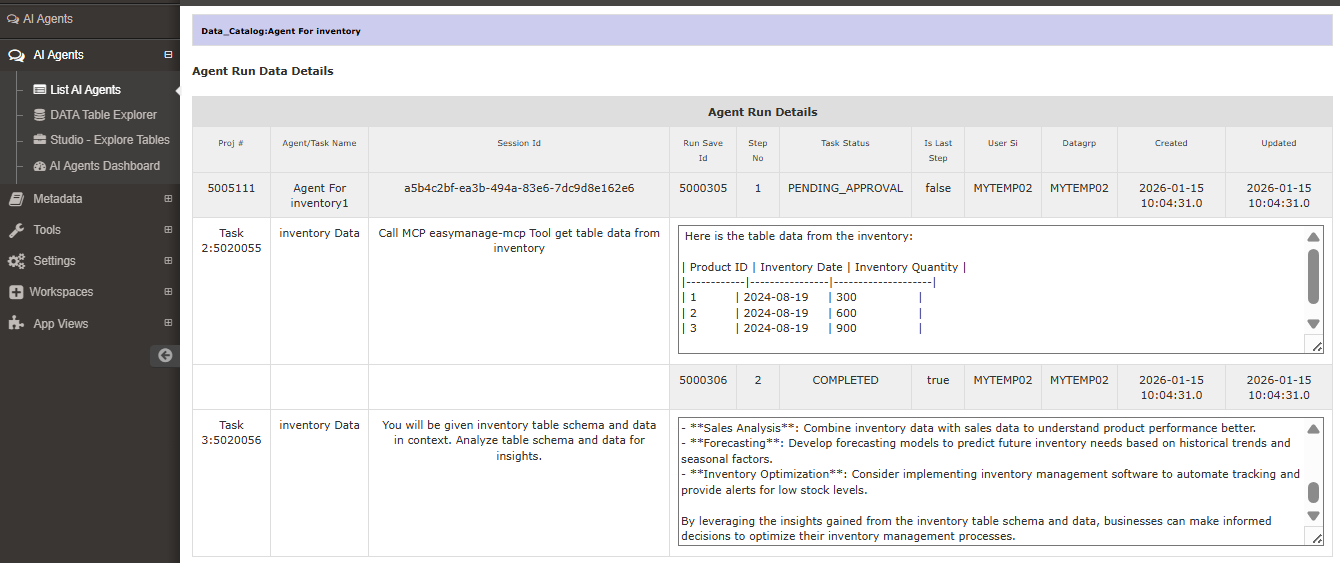
Run Agent With Human-in-the-loop
- Test AI Agents: With Approve Steps - Human-in-the-loop.
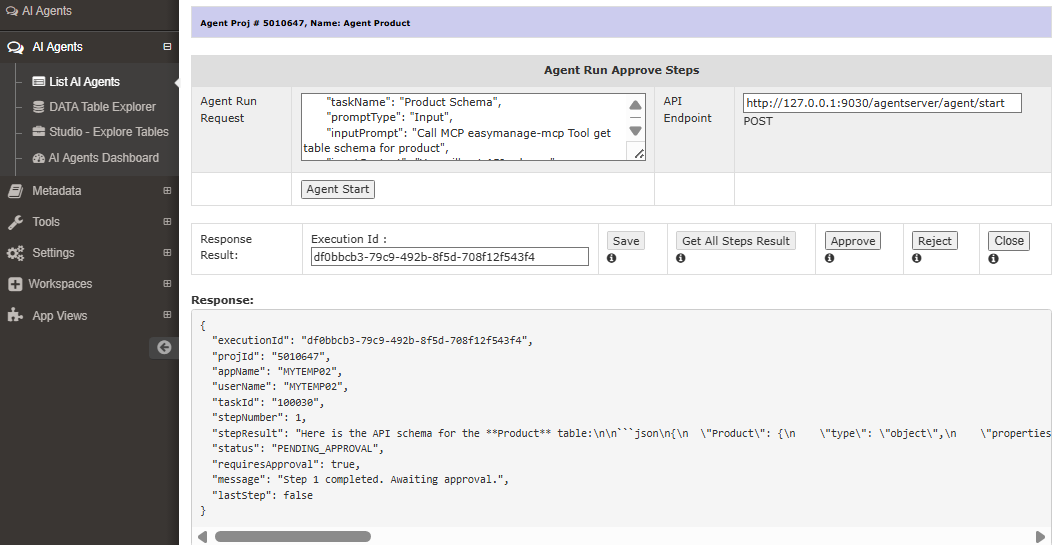
Run Agent With Auto Approve
- Test AI Agents - Inventory: With Auto Approve
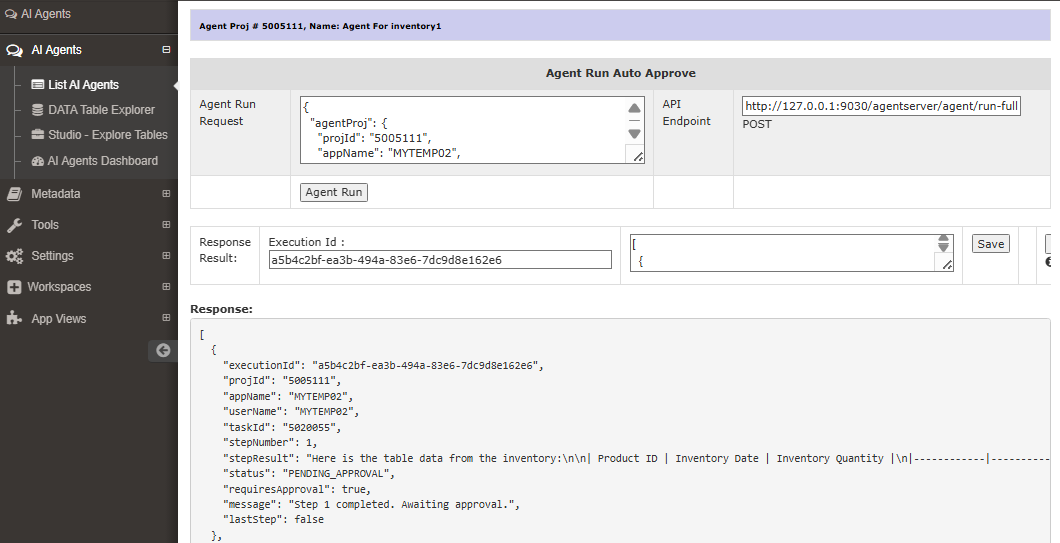
View MCP Tools Available
- To View/List MCP Tools Available to Chat or Agent Run:
- Use chat/task with input prompt:
List mcp tools available - The Agent Server console also displays all Tools Filters applied and final tool list.
- Use chat/task with input prompt:
LLM Response Metadata and Token Usage
- After each Chat Prompt or Agent Task Run:
- The Agent Server console will display Response Metadata, Model used and Token Usage.
Schedule Agent Runs
- Schedule AI Agent Runs using Kestra
- See details in
resources\templates\agent\spring-java\integrating\kestra\README-kestra.md- To setup Kestra in separate docker container
- Create Agent Run Schedule in Kestra
- Using Agent Run Auto Approve : Agent Run Request (json)
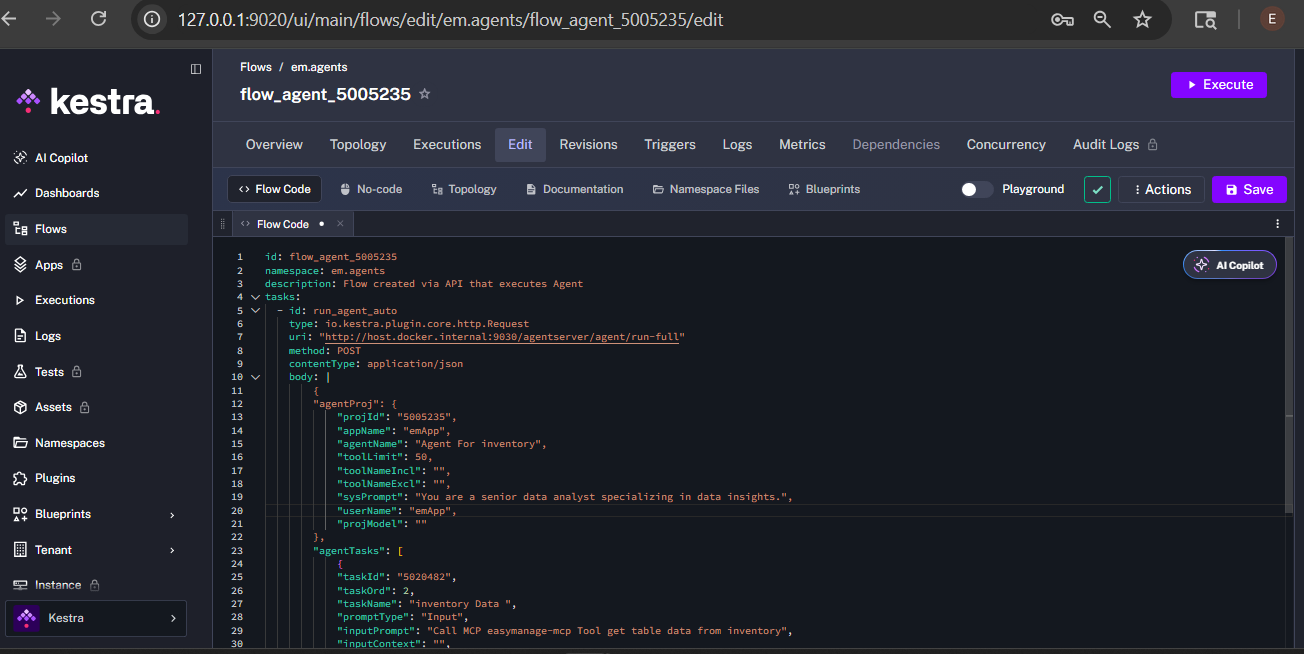
- See Agent Run Schedule and Executions History in Kestra
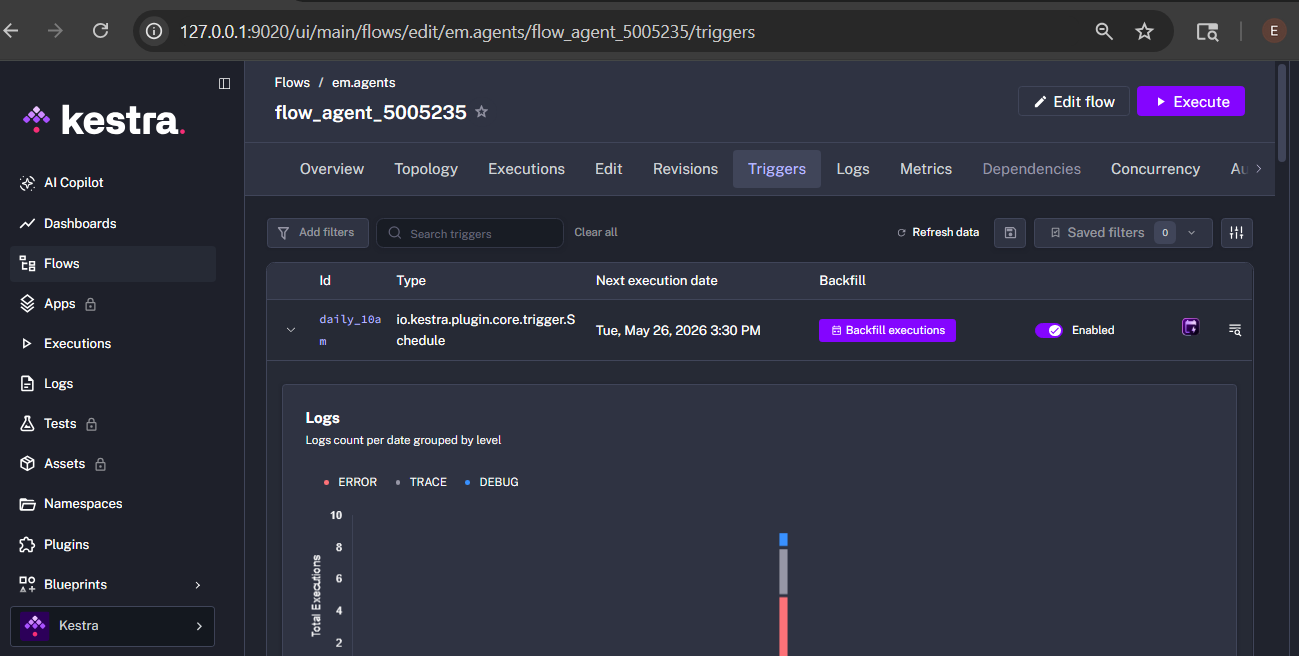
- Email Agent Run reports:
- To send an output report via email in Kestra, use the MailSend task
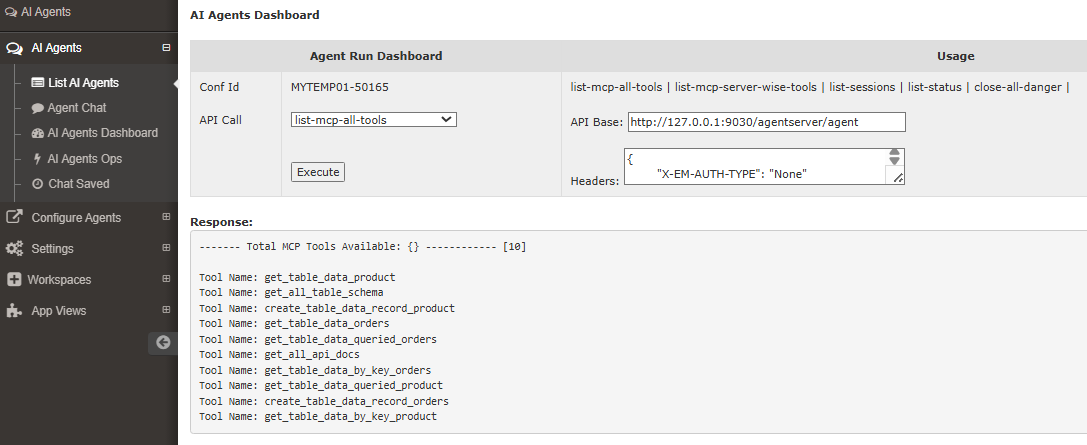
Agent Run Dashboard
- AI Agent Run Dashboard
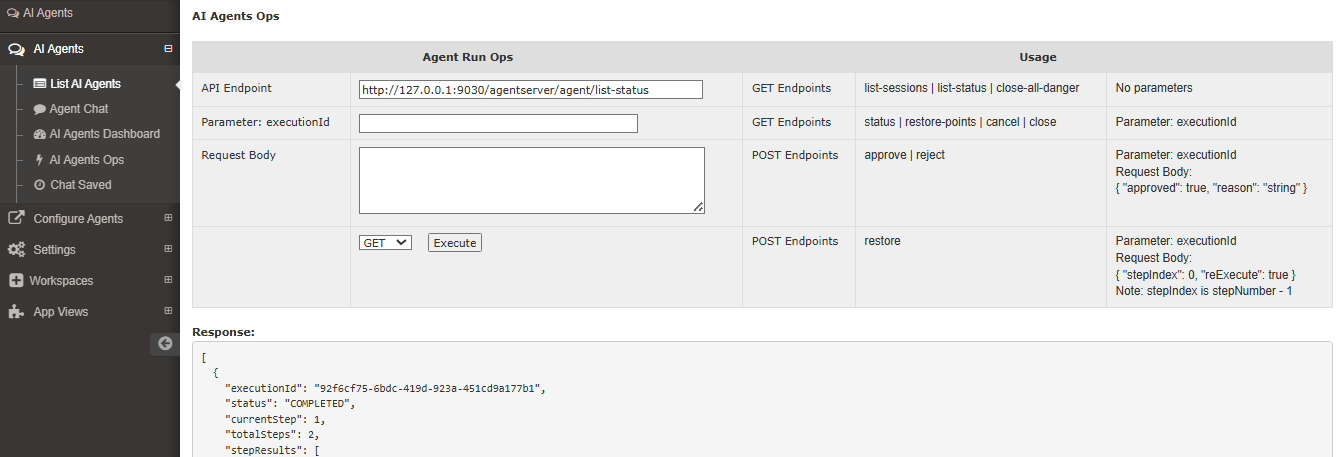
Agent Run Ops
- AI Agent Run Ops : Endpoints available
Agent Server
- Companion Agent Server
- See Agent Server Setup
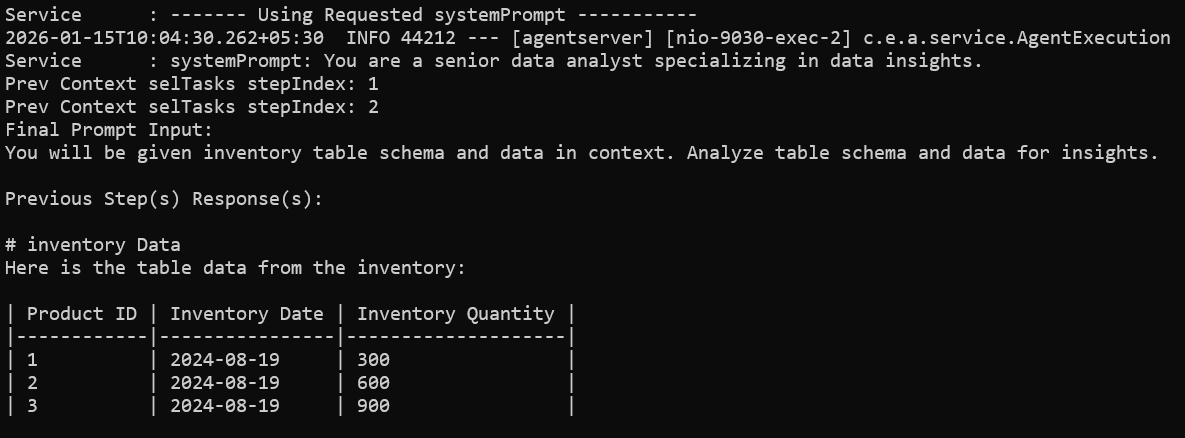
RAG Context
- Prompt Building - RAG Context Added
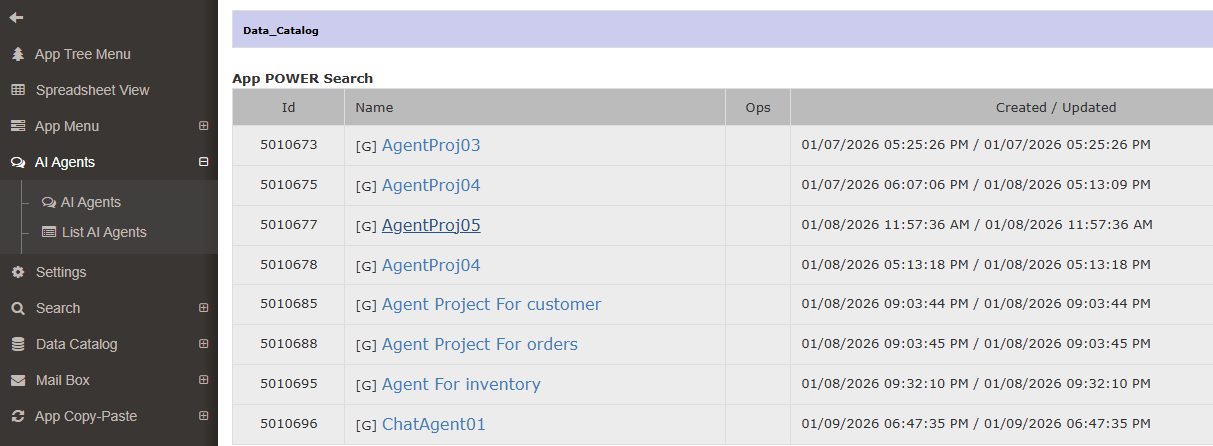
Publish Agents in Apps
- Make available in Apps
Share Insights & Reports
- View and share insights and reports by app users
Agent Server Setup
Agent Project uses companion Agent Server to Run Agents. Setup and Run Agent Server before Running Agents from App.
Agent Server Prerequisites
Before Running AI Agents, Run Builds For Backend APIs, MCP Server, and then Agent Server.
Deploy & Run
- APIs: REST
- MCP Server: REST
- Using Server Transport Streamable HTTP
- Agent Server
Note: You can use APIs GraphQL with MCP Server GraphQL.
Agent Server Run
Use Docker Container Run method. Alternatively use One-click Build Run Scripts, to run without docker.
Docker Container Run
Use Agent MCP Pack and Docker Container method, See Agent MCP Pack Docker Container
One-click Build Run Script
- For APIs REST, MCP REST
- Use One-click Build Run Script
- Locate below in generated code folder:
resources\scripts\spring-java\build-run.bat
- Build & Run Backend REST:
resources\scripts\spring-java\build-run.bat 1
- Build & Run MCP REST:
resources\scripts\spring-java\build-run.bat 2
- Build & Run Agent Server:
resources\scripts\spring-java\build-run.bat 3
- Run All 3 together:
resources\scripts\spring-java\build-run.bat
Agent Server Compile & Run
Locate Agent Server in downloaded code.
Downloads/EmGenDir_JohnDoe_WS_51186/WS_51186/agent/spring-java/agentserverGo to this directory
Optionally, Edit MCP tool types excluded by default
- Edit
agent\spring-java\agentserver\src\main\resources\application.properties - View/change value of property:
em.mcptools.toolTypeExcl="create_|update_|delete_|get_table_data_all_"
- Edit
Default tool types excluded reasons:
- Filter Transaction Tools with "create|update|delete_". Enable when implementing AI Transactions.
- Using tool type "gettable_data_all" is costly. Use only when table data is below 50 rows.
Compile & run.
Set
OPENAI_API_KEYto use default OpenAI.You can change to another LLM provider supported by Spring AI, by editing
pom.xml, and set its key.
On Win:
set OPENAI_API_KEY=<your key>

mvnw clean package

mvnw spring-boot:run
- Verify Started AgentServerApp:
2026-01-15T11:18:26.885+05:30  INFO 54448 --- [agentserver] [           main] o.s.b.w.embedded.tomcat.TomcatWebServer  : Tomcat started on port 9030 (http) with context path '/'
2026-01-15T11:18:26.917+05:30  INFO 54448 --- [agentserver] [           main] com.example.agentserver.AgentServerApp   : Started AgentServerApp in 4.024 seconds (process running for 4.582)
- View REST endpoints via Swagger:
- http://127.0.0.1:9030/swagger-ui/index.html
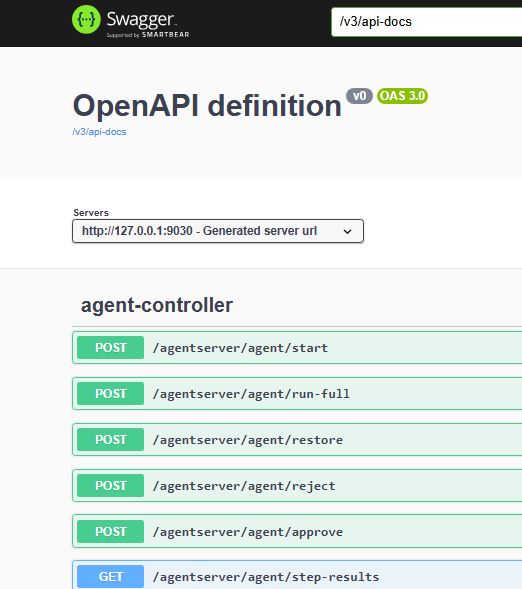
Agent Server Endpoints
| Type | Endpoints | Parameters |
|---|---|---|
| GET Endpoints | list-mcp-all-tools, list-mcp-server-wise-tools, list-sessions , list-status , close-all-danger | No parameters |
| GET Endpoints | status , step-results , restore-points , cancel , close | Parameter: executionId |
| POST Endpoints | approve , reject | Parameter: executionId |
| Request Body: { "approved": true, "reason": "string" } | ||
| POST Endpoints | restore | Parameter: executionId |
| Request Body: { "stepIndex": 0, "reExecute": true } Note: stepIndex is stepNumber - 1 |
Agent Server Security
When selected security methods, Combine MCP Server with Agent Server.
- Follow the guidelines at: Agent MCP Pack Security
Agent Server Configuration in EasyManage Builder
Follow Menu Links: AI Agents → Configure Agents → Agent Svr Conf
- Configure settings for Agent Server
- Setup Agent Server Configuration in Builder Studio. The settings are used by Agent Project and Agent Chat Runs.
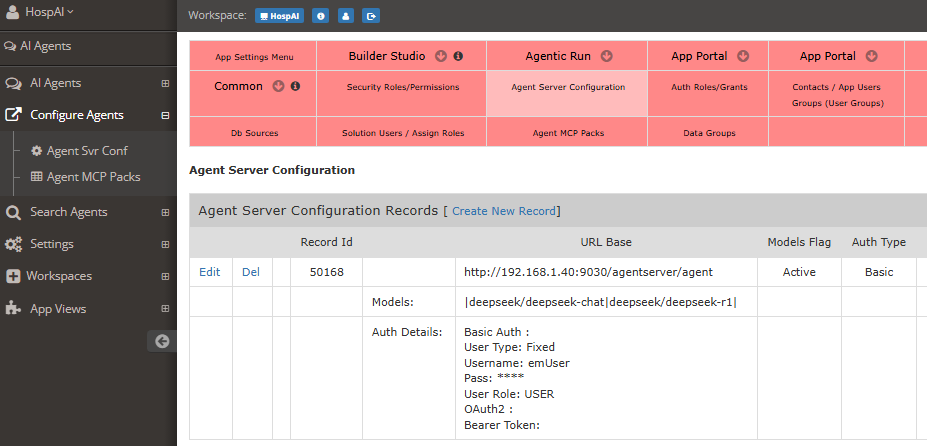
- Key Setting options and example values:
URL Base * : http://192.168.1.40:9030/agentserver/agent
Models: |anthropic/claude-haiku-4.5|anthropic/claude-sonnet-5|

Auth Type : None | Basic | Bearer